LISP Utilities
AHIDacen, a0ahid.elfQuick Hidden/Center/Visible Line (Side)
Generates hidden, center and visible projection line
Description
This tool is designed to easily project and draw Hidden Lines, Center Lines, or Visible (Outline) Lines on a front or side view based on the geometry of a plan view (e.g., projecting a hole).
Layer Handling :
- Smart Projection
- You can pick a point on the plan view and instantly draw the corresponding line on the view below or beside it.
- Auto-Snap
- The tool automatically applies the Perpendicular (PER) Osnap to ensure straight projection lines.
- AHID
- Draws on the Hidden layer.
- ACEN
- Draws on the Center layer (and extends slightly past the boundary).
- A0
- Draws on the 0 (or Outline) layer.
How to use
AHID for Hidden Lines.
ACEN for Center Lines.
A0 for Visible Lines.
The line is drawn automatically between the boundaries on the correct layer.
- 1.Type the desired command:
- 2.Click the Source Point on the plan view (e.g., the quadrant of a hole).
- 3.Click the Top Boundary of the target view.
- 4.Click the Bottom Boundary of the target view.
Note
- If using ACEN, the line will automatically extend slightly outward to follow standard center line drafting practices.
Example
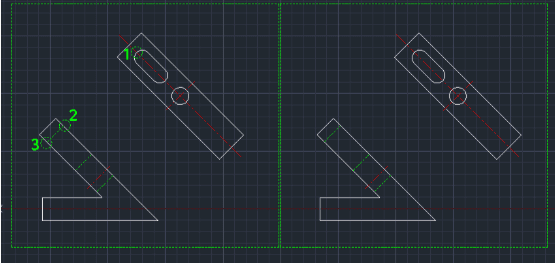
Included free
All 401 LISP utilities come free with every Cadopilar license.
Purchase any Cadopilar license and our team will install the complete suite for you. No additional charge, no setup headaches.
Contact us to get started →